
Last updated November 20, 2026
Connect Intercom
Connect Intercom so Supahelp can read conversations and draft replies for you to approve. You sign in with your own Intercom account, so your teammate permissions apply.
1. Install Supahelp and sign in
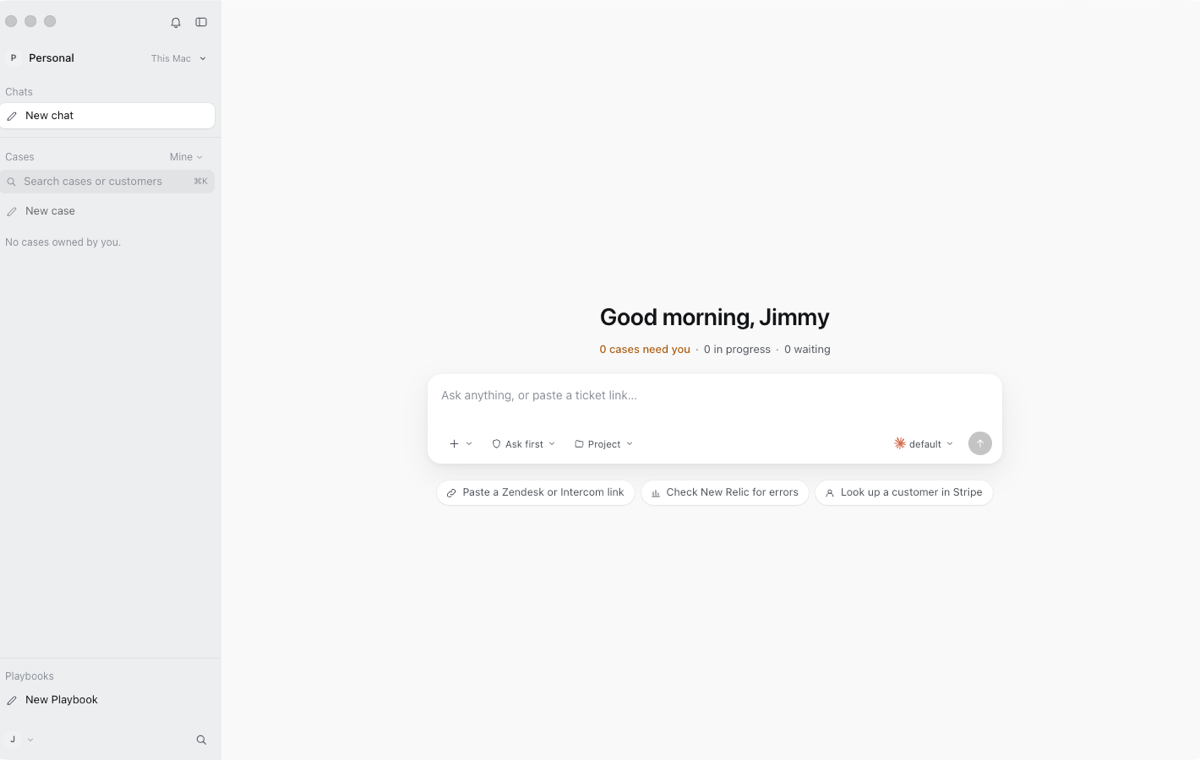
Download the desktop app from the download page and sign in to your Supahelp account. The Intercom connection needs a Supahelp account.
2. Add the connection
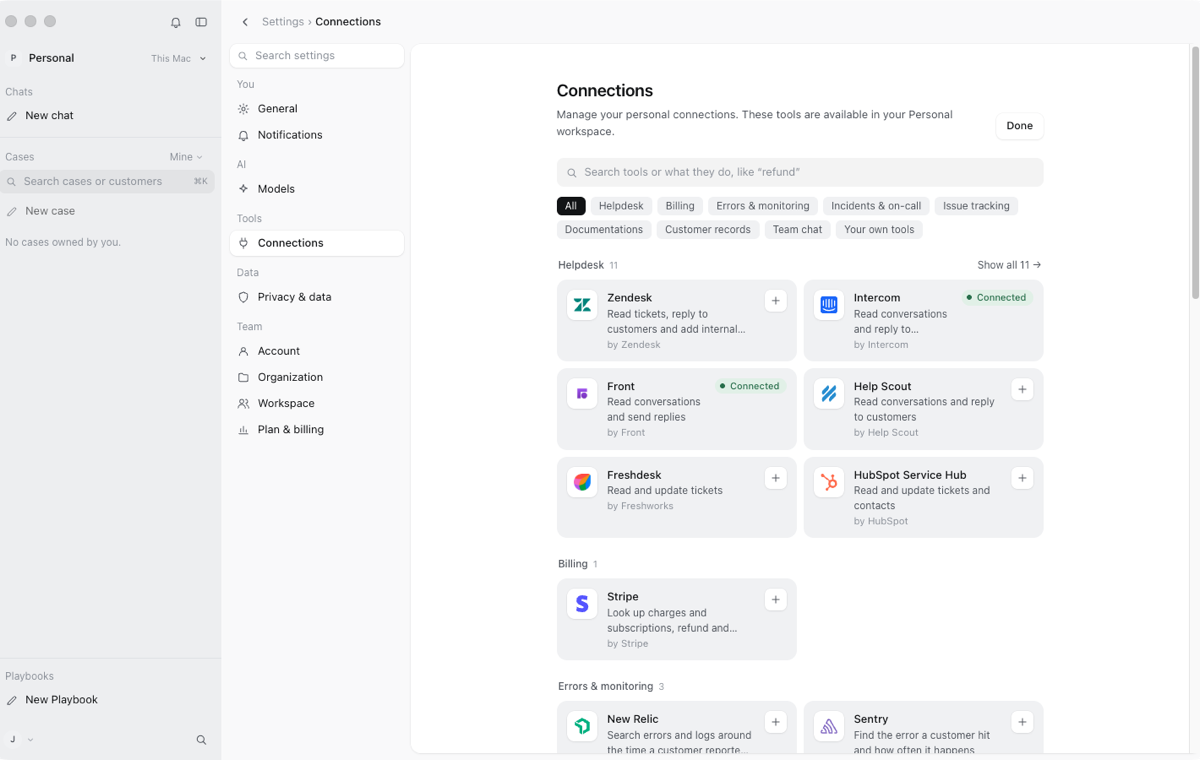
Open Settings, then Connections, choose Add connection and pick Intercom. Choose your Intercom region: US, EU or Australia.
3. Authorize in Intercom
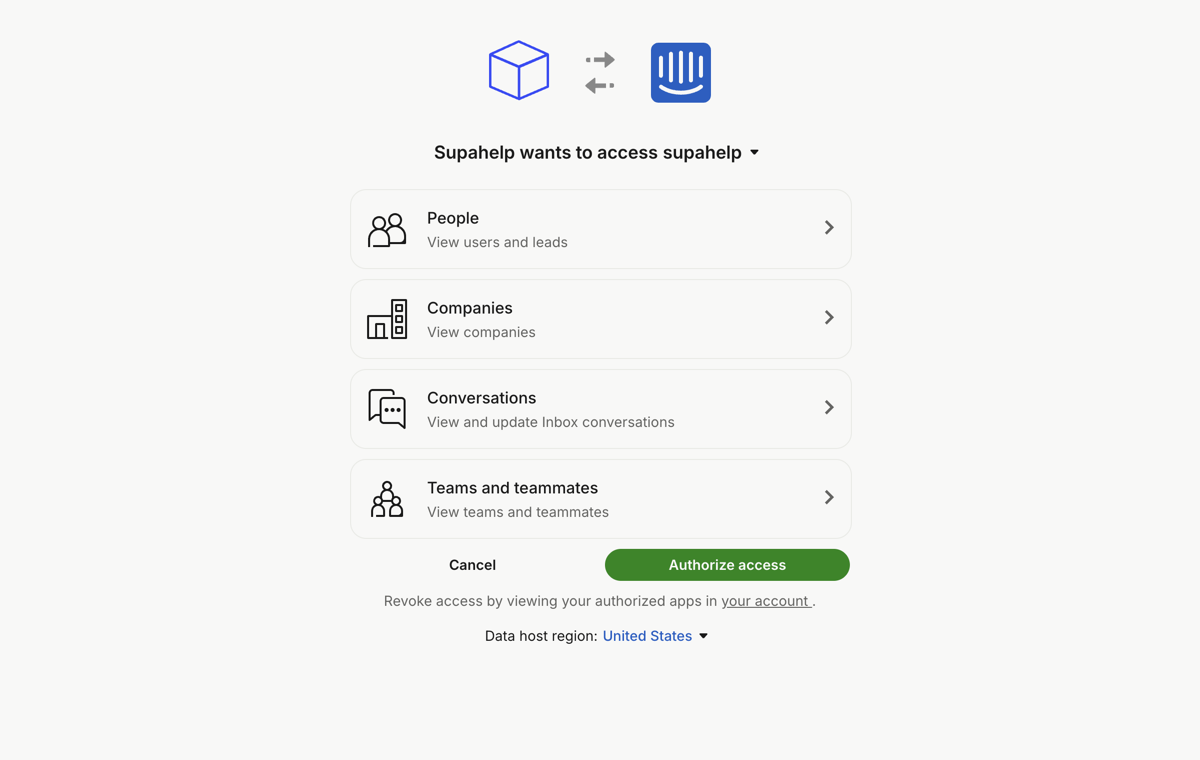
Your browser opens Intercom's authorization page. Supahelp asks to view people and companies, view and update inbox conversations, and view teams and teammates. Choose Authorize access.
4. Confirm it is connected
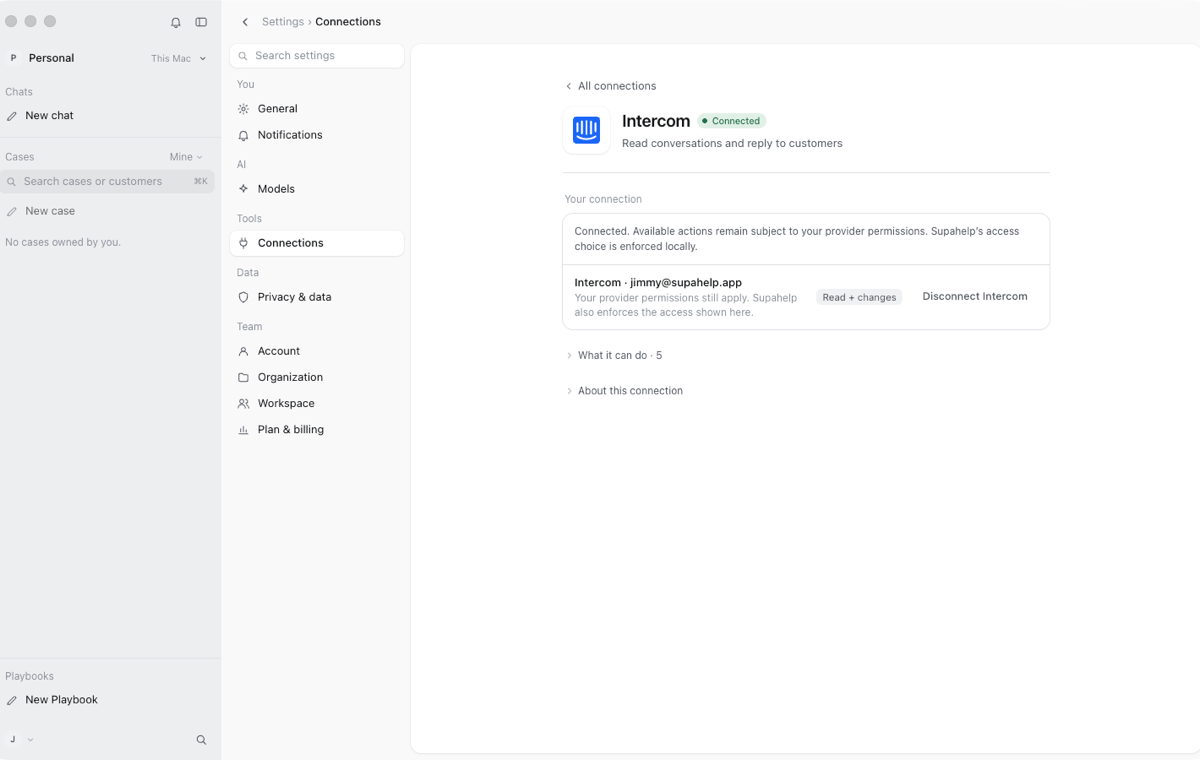
Back in Supahelp, Settings, then Connections shows Intercom as connected. Ask about a conversation and Supahelp reads it from Intercom.
5. Approve each reply before it is sent
Supahelp drafts the reply and shows it on an approval card with the exact words. Nothing is sent or changed until you choose Approve. You can edit the draft or cancel.
6. Disconnect any time
Remove the connection in Settings, then Connections. You can also uninstall the app from Intercom's authorized apps.